11:101 / 2
Get Your Business Online
The complete onboarding walkthrough: account setup, launch packs, Stripe, Google Calendar, HubSpot, and going live.
Watch with full transcriptFrom signup to taking your first booking — the complete Bizzly onboarding walkthrough.
Welcome to Bizzly, the all-in-one booking and subscription platform built for small service businesses. Whether you run music lessons, a fitness studio, a cleaning company, or any other service business, Bizzly gives you a live booking website, subscription billing, Google Calendar sync, and customer management all in one place.
If you're still managing bookings by phone — juggling emails, texts, WhatsApp messages, and spreadsheets — this video is for you. In the next ten minutes I'm going to show you how to go from a blank screen to a fully live booking and subscription website: your booking page, subscription plans, payment processing, and calendar sync. All set up in one session. No code required.
Getting started takes under a minute. From the homepage, click sign in. Then either sign up with your Google account or create an account with an email and password. After filling in a few basic details you land on the pricing page. Select the plan that meets your needs — each plan includes a free trial to get started with no card required. You're taken straight to the Bizzly admin dashboard, where you can manage your subscription, view your profile, and raise a support ticket. Everything else unlocks as you work through onboarding.
Click the onboarding tab to begin. The onboarding wizard walks you through eight steps. Six are required: company profile, payments, calendar, CRM, your design template, and the final launch step. Configure Business and Analytics are optional extras you can complete now or come back to later. Each step you complete unlocks more of the platform.
The first step is your company profile. Give your business a name and choose a subdomain — this becomes your live booking page URL instantly. We're setting up Westborne Music Studio here. The URL is automatically generated from the name and you can customise it. You'll be able to add a custom domain later if you have a Pro-level subscription plan.
Step two is connecting your payment account. Bizzly uses Stripe — the same payment infrastructure used by Amazon and Shopify. Clicking Connect with Stripe takes you through a standard Stripe authentication flow where you either connect an existing Stripe account or create a new one in minutes. Once connected, Stripe handles all card payments, recurring billing, and invoicing securely. Bizzly never stores card details.
Step three connects your Google Calendar. When you click connect, Google's authorisation screen shows exactly what access Bizzly is requesting: permission to manage your Google Calendar. That broad permission is required because Bizzly creates dedicated Google Calendars on your behalf — one per bookable resource. That might be one calendar for a single-teacher music studio, or several for a pet care business with a grooming room, walking rounds, and daycare.
Step four is connecting your CRM. This is a required step. Bizzly integrates with HubSpot's free tier so there's no extra cost. When the consent screen appears, you'll see the permissions Bizzly needs: read and write access to contacts and companies — so every new customer who books is automatically created as a HubSpot contact; forms access for your lead capture pages; and ticket access for support workflows. These permissions are the minimum needed to keep your CRM in sync. Bizzly doesn't touch anything else in your HubSpot portal.
Step five is choosing your launch pack. Bizzly includes pre-built launch packs for 13 different industries: fitness, music, tutoring, cleaning, pet care, trades, and more. These aren't blank templates — each one is a complete, pre-configured business model with working services, plan structures, booking rules, and a full website.
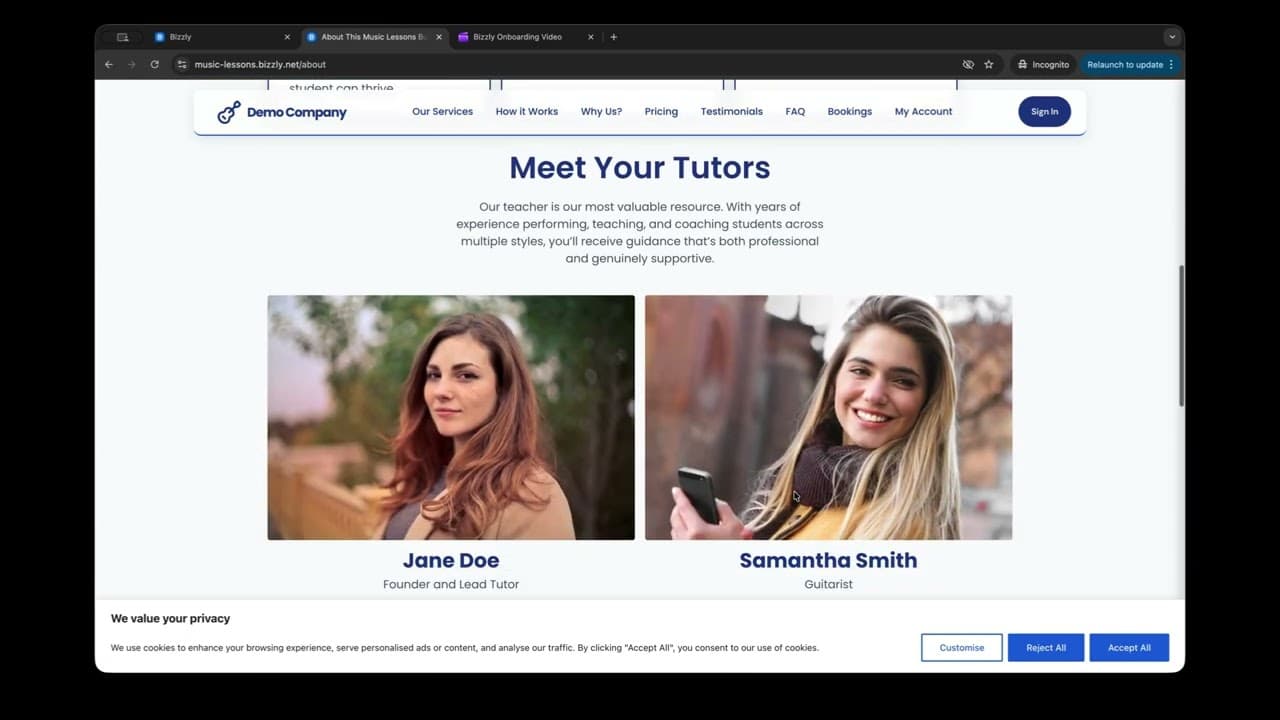
Before committing, you can preview the live demo site. Here's the music lessons launch pack. The homepage shows the subscription plan tiers exactly as customers will see them. The booking page has the live calendar with available lesson slots. There's an about page and a contact page, all pre-built and ready to personalise with your own content.
Once you've seen what you're getting, hit Apply — and instantly everything is provisioned: booking page, website, service structure, customer portal, all pre-wired. This alone saves days of setup work.
Step six is configuring your business. Because we applied the music lessons launch pack, all the services are already pre-built: private lessons, beginner group, intermediate group — with plans, pricing, and quotas already set. All we need to do is add our availability.
We jump to Booking Management and add a Wednesday 4 pm beginner group slot with capacity for six students. The moment we save, the new group lesson goes live on our public booking page. Students can see it and book straight away. No further setup required.
Step seven is analytics — optional, but recommended. Paste in your Google Analytics 4 Measurement ID and Bizzly automatically injects the tracking code across your entire booking site. You'll be able to see where visitors come from, which services get the most views, and how many people start but don't complete a booking.
Step eight: launch. The wizard shows a summary of everything that's been configured. We click View Website and we're taken to our fully provisioned business at westborne-music-studio.bizzly.net — live and ready to take bookings.
This is what your students see: a clean, branded booking page with your services and pricing displayed. They click Book Now, pick a slot from the live calendar — the same calendar that syncs directly to your Google Calendar — and pay securely through Stripe.
That's it. No phone calls, no back-and-forth messages, no manual invoicing. From the moment they book, everything is handled: payment taken, Google Calendar event created, confirmation sent, and the booking recorded in your Bizzly dashboard.
Back in the admin dashboard: View Calendar gives a live operational view of all upcoming lessons. Booking Management has three sub-tabs — Services, Plans, and Availability. The website editor is where you customise how your site looks: update the navbar, logo, and brand colours sitewide. Changes apply instantly to the live site.
That's the full setup — from sign-up to a live, fully operational service business in under 15 minutes. Start your free trial at bizzly.net. The link is in the description. If you found this useful, subscribe for more videos on growing your service business with Bizzly.
Five simple steps from signup to taking bookings
Click on each step to learn more
Sign up and claim your unique web address. Your professional online presence starts here.
Link Stripe, Google Calendar, and HubSpot with one click each. Payments, scheduling, and CRM—sorted.
Complete businesses, not empty templates. We provision your Stripe products, booking calendars, quota limits, and email workflows in 2-3 minutes—everything ready for your first booking.
Your brand, your pricing, zero technical work. Behind the scenes we update Stripe products, reconfigure calendars, and sync everything automatically. You just fill in the details—we handle the orchestration.
Go live instantly. Share your link, accept bookings, and watch your business grow on autopilot.
Sign up and claim your unique web address. Your professional online presence starts here.
Step-by-step guide: Create your account and choose a plan
Sign up and claim your unique web address. Your professional online presence starts here.
Sign up and claim your unique web address. Your professional online presence starts here.
Step-by-step guide: Create your account and choose a plan
Link Stripe, Google Calendar, and HubSpot with one click each. Payments, scheduling, and CRM—sorted.
Complete businesses, not empty templates. We provision your Stripe products, booking calendars, quota limits, and email workflows in 2-3 minutes—everything ready for your first booking.
Your brand, your pricing, zero technical work. Behind the scenes we update Stripe products, reconfigure calendars, and sync everything automatically. You just fill in the details—we handle the orchestration.
Go live instantly. Share your link, accept bookings, and watch your business grow on autopilot.
Built for service businesses who want results, not complexity
Customers book, check availability, and manage appointments via WhatsApp 24/7—no manual work.
Our visual builder makes it easy to create professional websites without writing code.
Website, booking, payments, and marketing—everything works together seamlessly.
Bank-level encryption, GDPR compliance, and automatic backups keep your data safe.
Stop juggling multiple tools and subscriptions. Bizzly gives you everything you need to run your service business—website, booking, payments, and marketing—all working together seamlessly.
Every plan includes a 14-day free trial with full access to all features. Test everything risk-free and choose the plan that fits as you grow.
Join service businesses already using Bizzly. Start your free trial today.
Start Free Trial